3 min readBy the VORNIC360 Team
How to Find the MAC Address on a Samsung or LG Smart TV for IPTV
Step-by-step paths to find your Samsung or LG Smart TV's MAC address, which address your IPTV app needs, and why apps like IBO Player show their own.
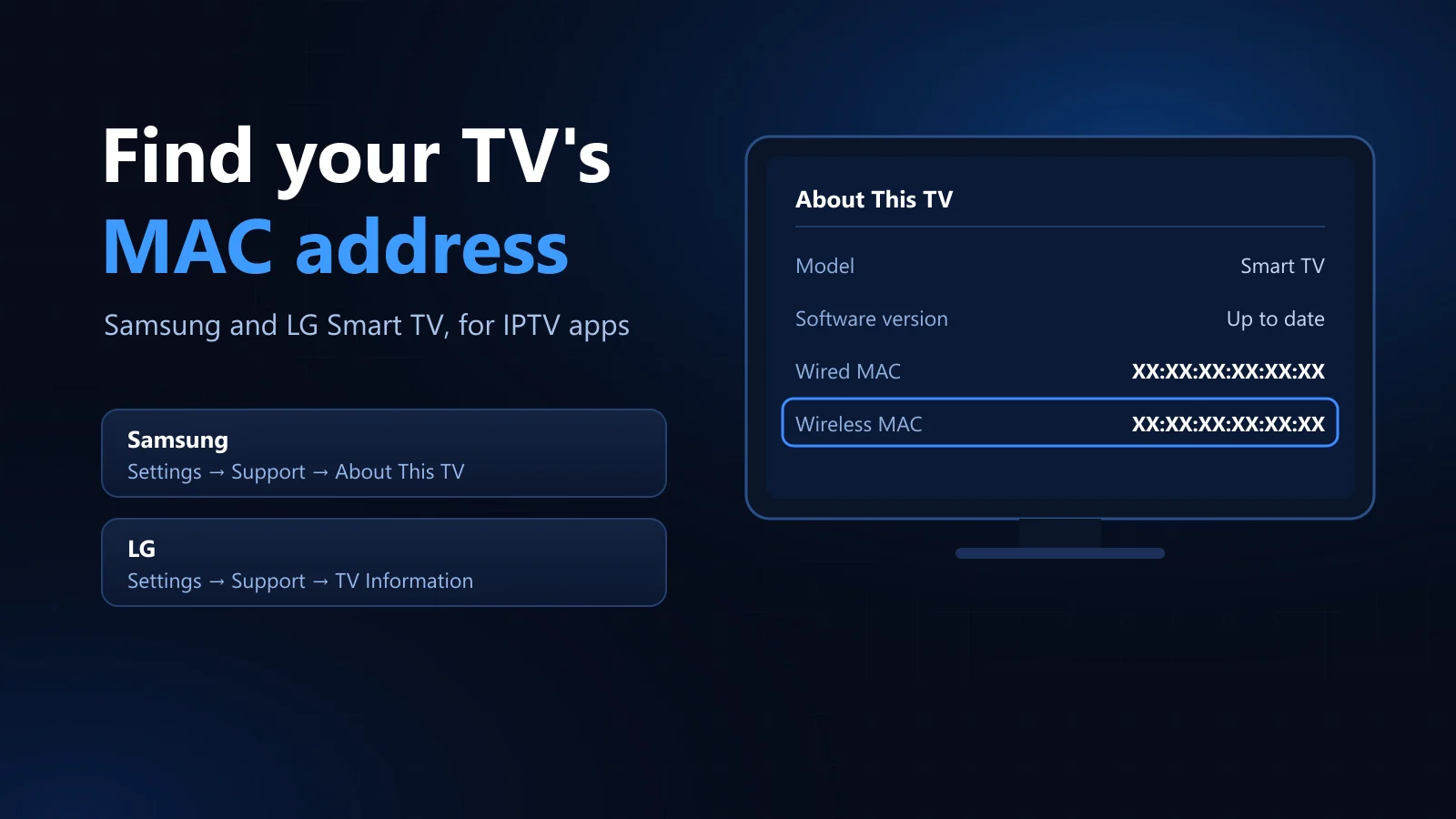
Some IPTV apps for Samsung and LG Smart TVs, such as IBO Player and Smart IPTV, are activated with a MAC address instead of a typed login. This guide shows where to find the MAC address on Samsung and LG TVs, which address your IPTV app actually needs, and how to avoid the most common mistakes.
What is a MAC address?
A MAC address is a hardware ID for a network connection. It has 12 characters, usually written in six pairs, such asXX:XX:XX:XX:XX:XX. It only uses the numbers 0–9 and the letters A–F.
Most Smart TVs have two MAC addresses: one for the wired (Ethernet) connection and one for Wi-Fi. They are different, so it matters which one you use.
Which MAC address does your IPTV app need?
- If the app shows a MAC address on its start screen, use that one. IBO Player and Smart IPTV display the address they expect when you open them, and some apps show their own device ID that does not match the TV's network MAC. Copy it exactly as the app shows it.
- If you are asked for the TV's MAC address, use the one for the connection your TV is using right now: the Wi-Fi MAC on Wi-Fi, or the wired MAC on an Ethernet cable.
How to find the MAC address on a Samsung Smart TV
- Press the Home button on your remote and open Settings.
- Go to Support and select About This TV. On some models it is under Contact Samsung.
- Scroll down to find the MAC address. Many models list both the wired and the wireless MAC address.
Menu names vary by model year and software version. If you cannot find it there, check the network settings under Settings → General → Network, where some models show the MAC address with the connection details.
How to find the MAC address on an LG Smart TV
- Press the Settings button on your remote and open All Settings.
- Go to Support and select TV Information. On older models, look for General → About This TV.
- Find the MAC address on the information screen. Many models show both the wired and the Wi-Fi MAC address.
On some LG models, the Wi-Fi MAC address is also shown in the advanced Wi-Fi settings under Network → Wi-Fi Connection.
Tips to avoid activation problems
- Copy it carefully. A MAC address never contains the letter O, only the number 0, and it never contains letters after F.
- Keep the same connection. If you switch from Wi-Fi to an Ethernet cable (or back), the TV uses a different MAC address, and an activation linked to the TV's network MAC may need to be updated.
- Take a photo of the screen. It is the easiest way to send the address without typos.
- Restart the app after activation. Most apps load the channel list the next time they open.
Activating your IPTV app
Once you have the right address, add your playlist on the app's website with that MAC address, or send the MAC address to the VORNIC360 team on WhatsApp and we will tell you whether MAC activation is available for your subscription and help you with the next step. The full steps for both apps are in the Smart TV section of the VORNIC360 installation guide.
Prefer to type a login instead? Many apps also accept Xtream Codes or an M3U link. Here is the difference between Xtream Codes and M3U. New to VORNIC360? Read what VORNIC360 is and how to get started, or contact our team.
Related articles
4 min read
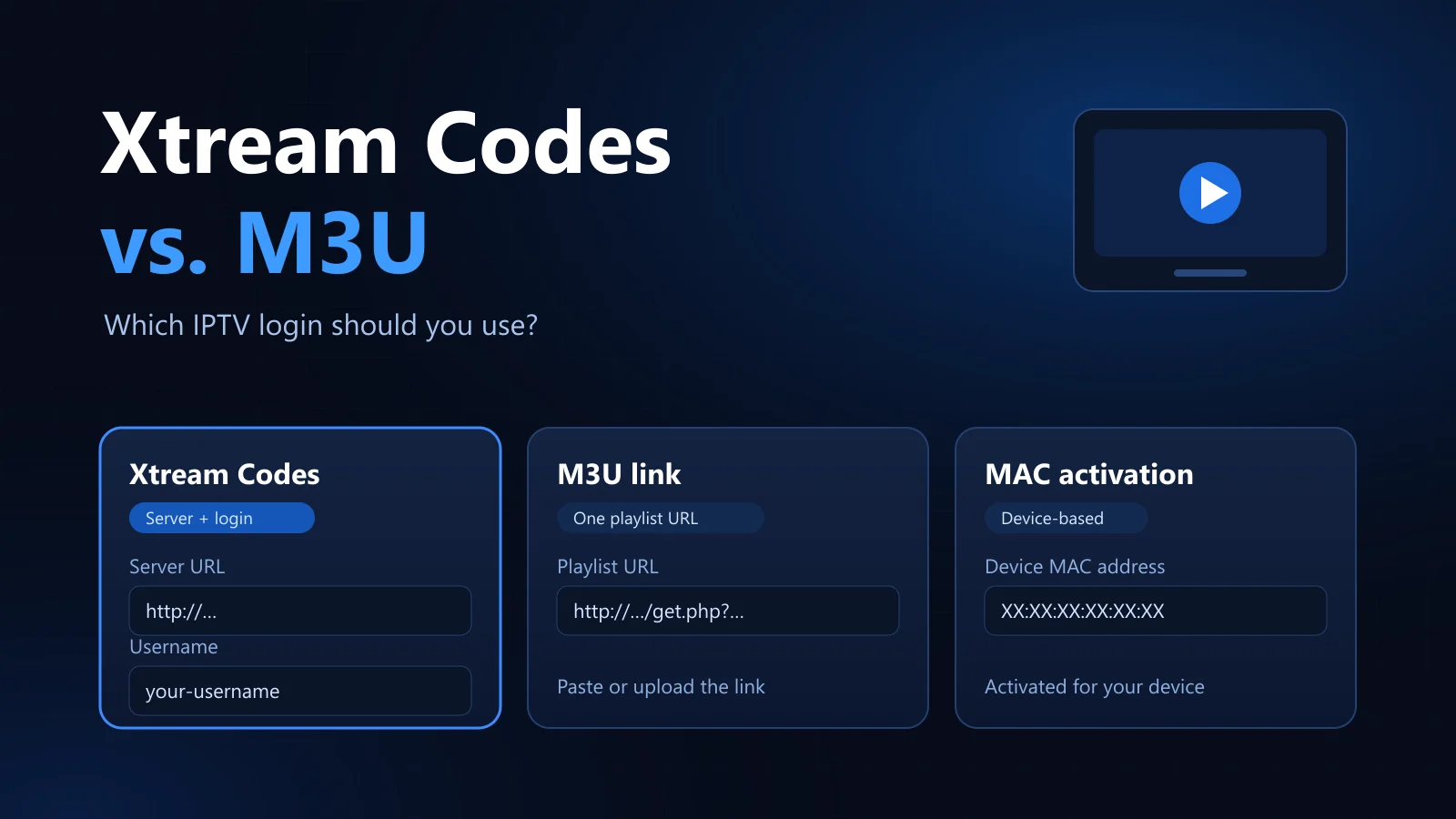
Xtream Codes vs. M3U: Which IPTV Login Should You Use?
Xtream Codes and M3U both sign you in to IPTV apps, but they work differently. Compare setup, TV guide loading and app support, and when MAC activation applies.
4 min read
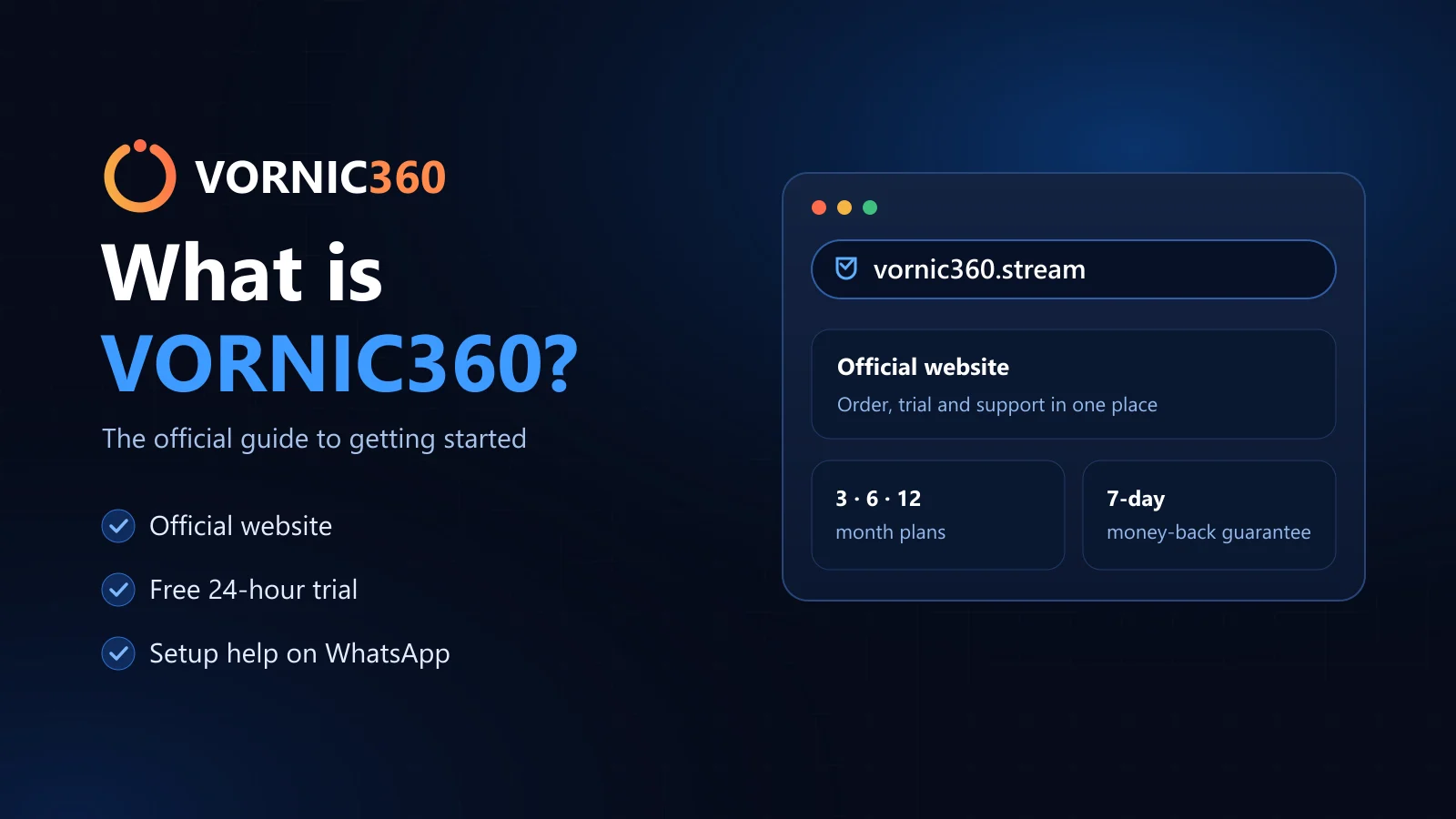
What Is VORNIC360? Your Guide to Getting Started
What VORNIC360 is, how to recognize the official website, how the free 24-hour trial and plans work, and how to set up VORNIC360 IPTV on your device.